Safe Area
Screen edges can be obscured by system UI or device form. Explains criteria for deciding whether to place elements within the unobscured safe area or fill to the screen edge.
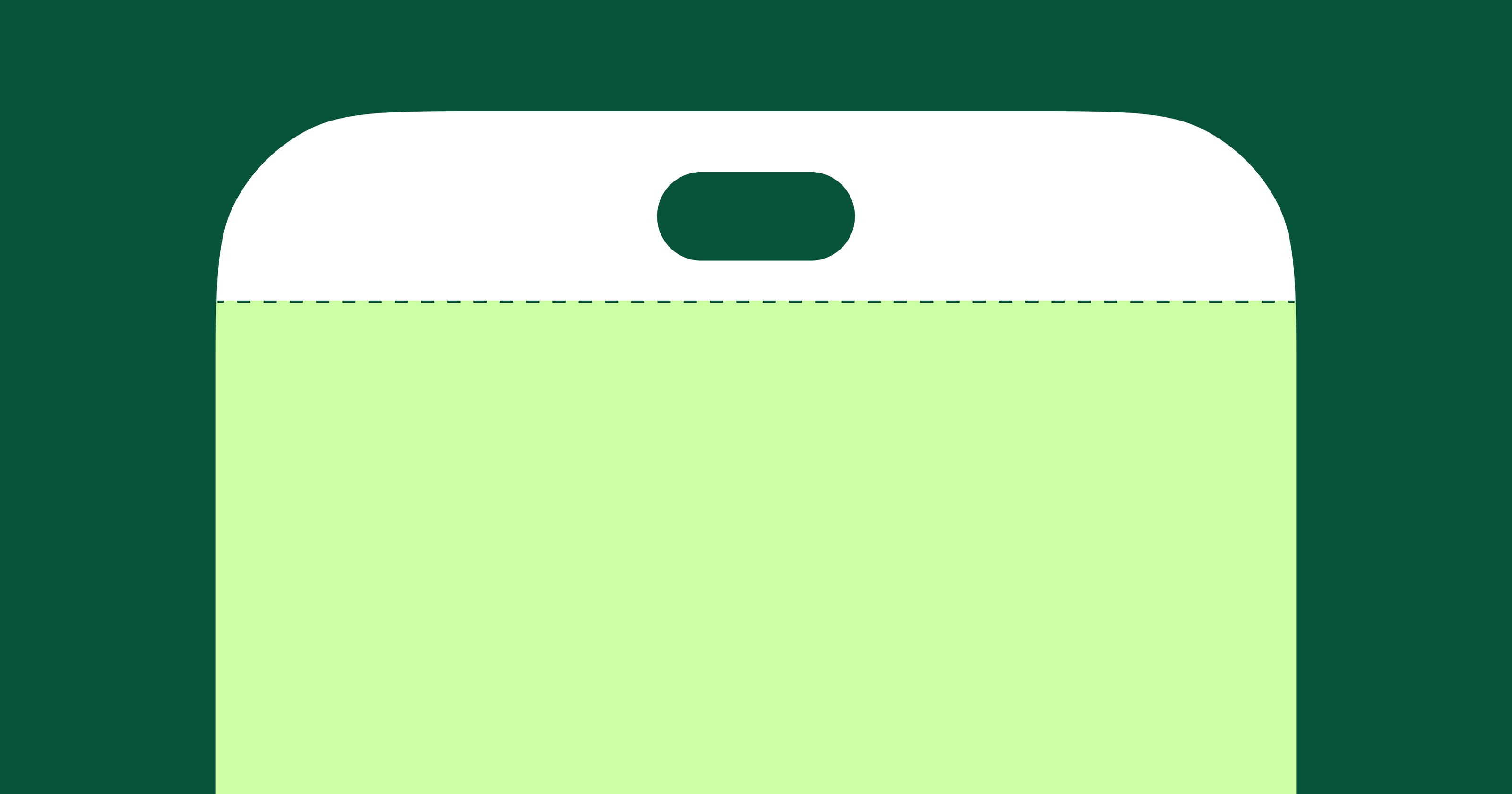
Understanding Safe Area
Safe Area is an area on the screen that is not obscured or cut off by system UI or device form. Outside the safe area may be obscured or cut off by the following elements:
- System UI that overlays on the screen, such as status bar or home indicator
- Display cutout (area of the screen left empty for camera or sensors)
- Rounded corners of the screen

The Four Sides Can Have Different Sizes
The safe area's insets are not limited to top and bottom.
- Portrait: Safe area insets typically exist on the top and bottom, but depending on device form, insets can also appear on the left or right.
- Landscape: Cameras or sensors can be placed on the left or right. On devices where the home indicator is displayed at the bottom, a bottom inset can also remain.
The insets of the four sides are independent of each other. Do not assume the top and bottom, or left and right, values are the same.
Sizes Vary by Situation
The size of the safe area can vary depending on the device, OS, screen orientation, and the display state of the system UI. The insets on all four sides can be 0, only some can be non-zero, or all can be non-zero.
Do not assume a specific direction is always 0, or apply a value confirmed for a specific device or situation as a fixed value across all screens.
It Can Also Change After the Screen Is Shown
The size or position of the safe area can change even while a screen is already displayed. For example:
- When the size changes: In environments that support split screen, the area the app occupies on screen can change, causing each side's inset to shrink or disappear.
- When the position changes: If the screen also rotates when the device is turned to the opposite orientation in landscape, the inset avoiding the camera can move to the opposite side.
So that content is not obscured even when the safe area changes due to screen rotation or splitting, always position elements based on the current safe area.
Placement Principles
Decide the placement range based on whether the element loses information or function when obscured or cut off. For scrollable elements, also check whether the obscured part can be brought into the safe area by scrolling.
Content Goes Inside the Safe Area
Pressable elements and content that would lose any information or function when obscured or cut off must be placed inside the safe area.
- Pressable elements: buttons, links, input fields, tabs, etc.
- Information that needs to be read: text, icons, prices, badges, images that convey meaning, etc.

Margins Are Measured from the Safe Area Boundary
The margin an element originally has is measured from the safe area boundary, not the screen edge. For example:
- Left/right: Content that uses
$dimension.spacing-x.global-gutteras the screen margin is offset by that amount from the safe area boundary. - Bottom: If a button is in a bottom fixed bar, offset the button from the bottom safe area boundary by the bar's inner padding.
If the margin is measured from the screen edge, content can be obscured wherever the safe area's inset is larger than the margin. Adding the default margin to the safe area's inset avoids obscuring content while keeping the default margin around content consistent even when the device or screen orientation changes.
Center Alignment Is Based on the Safe Area
Content placed inside the safe area is aligned based on the same safe area. For example, when centering search results below a search bar, align to the center of the safe area the search bar is placed in, not the entire screen. This way, even if an inset exists on only one side, the alignment reference of the search bar and the results stays consistent.
Backgrounds Extend to the Screen Edge
Elements that lose nothing when obscured or cut off fill all the way to the screen edge, beyond the safe area. If a background stops at the safe area, the area outside the safe area remains as an empty strip, making the screen look narrower, and elements that cross the screen look cut off in the middle.
- Backgrounds of sections and banners such as Page Banner: fill to the left and right screen edges, but place the text and buttons inside them within the safe area.
- Full-width Divider: fills to the left and right screen edges.
- Images used decoratively, like hero images: fill to the left and right screen edges.
- Maps, videos, full-screen image viewers: fill the background of the display area to the screen edge on all four sides. Decide the aspect ratio and cropping of the image or video itself according to the content's purpose.
Content on Top of a Background
When a background and content are together in one element, apply the rule separately to each part. Fill the background to the screen edge, and place the content on top of it inside the safe area.
- Buttons and text placed on top of an image: place them inside the safe area.
- Text and main subjects contained within the image itself: compose the image so they fall inside the safe area. Place parts that are fine to obscure or cut off at the edges.
Even after scrolling until the cover image is no longer visible, the body text must remain inside the safe area.
Scrollable Content
Scrollable items can pass outside the safe area while scrolling. If an obscured item can be scrolled back into the safe area, no information or function is lost, so the scroll area is widened to the screen edge. If the scroll area is cut off at the safe area, items appear cut off inside the screen.
- Horizontal scroll: Tabs, chip lists, and carousels extend past the left and right safe area to the screen edge.
- Vertical scroll: lists extend to the bottom edge of the screen. In environments with a bottom inset, items can pass outside the safe area while scrolling.
In this case, observe the following conditions.
- When not scrolled, align the first item to the same line as other content. For example, if other content uses
$dimension.spacing-x.global-gutteras the screen margin, offset the first item of the horizontal scroll by that same amount from the safe area boundary. - Only the scroll area is widened to the screen edge. Buttons and bars fixed on screen cannot be brought back by scrolling, so keep them inside the safe area.
When scrolled all the way to the end, the entire last item must be visible inside the safe area. Secure both the safe area inset and the default margin together at the end of the scroll content.